
Hello friends,
Welcome to Obsidian Soft.
Today, I will teach you how to use the built-in charts component in MIT App Inventor to draw a pie chart.
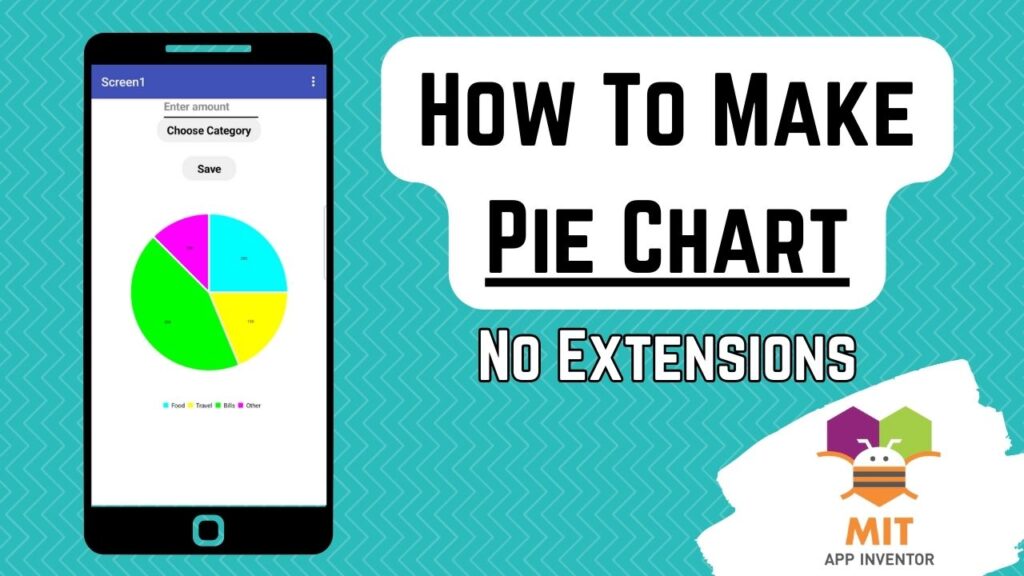
We will make a simple budget app in this tutorial with expense amounts and their categories, and these expenses will be graphically displayed in a pie chart.
So, let’s begin.
Open up MIT App Inventor. Start a new project and call it BudgetApp.
Drag and drop a textbox from the user interface palette onto the viewer.
Rename to amountTextbox. Make font bold, font size 18, and change hint to “Enter Expense Amount”.
Drag and drop a listpicker from the user interface below the textbox. Rename to categoryPicker. Make font bold, font size 18, change text to “Choose Expense Type”, and in elements from string, type: Food, Travel, Bills, Other.
Add a label for space below this listpicker. Remove all text from it.
Add a button below this space. Rename to saveBtn. Make font bold, font size 18, and change text to “Save”.
Now, drag and drop a Chart component from the Charts palette below the save button.
Rename to PieChart. Make height 50% and width 70%. It is very important that you check the legendEnabled checkbox and change the type to Pie.
Now, here comes another important thing. Drag and drop a ChartData2D component from the Charts palette inside this PieChart.
Lastly, add a tinyDB component from storage to the viewer and also a notifier for error handling from the user interface.
Our screen design is done, so let’s go to the blocks section.
Make a global variable for our list of expenses:

And a global variable for our DB Tag:
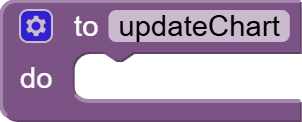
Make an empty procedure of the first type that doesn’t return a result by getting the relevant block from the Procedures section and name it updateChart.
Then, get the save button click event.
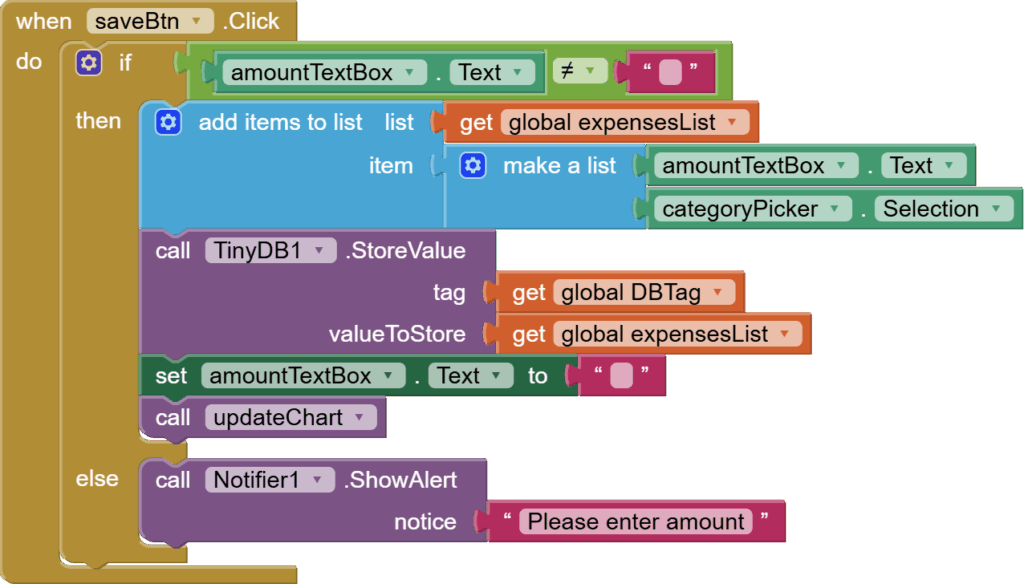
First, we are going to check that the user has entered an amount, and if not, then we will go inside the else condition and show an alert message using the notifier.
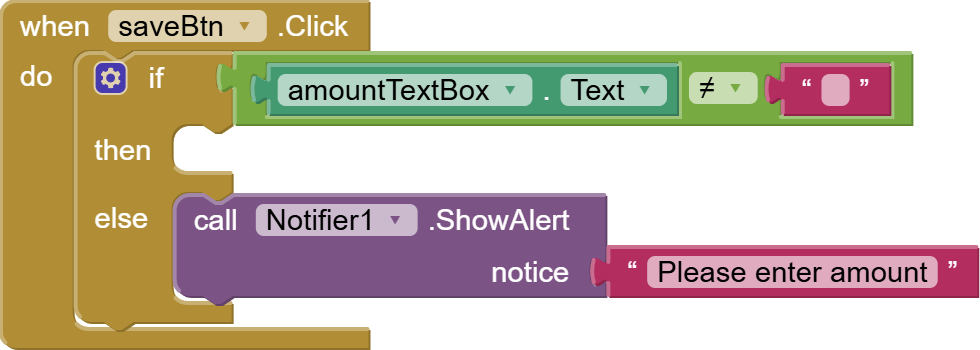
Error handling handled 😉
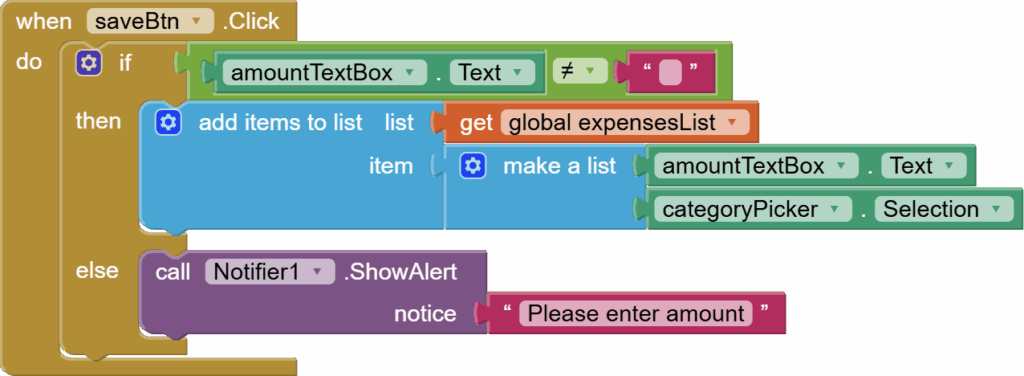
So, we need to add the data to the expenses list, where each item is a small list too, with 2 items:
- Amount
- Category
Next, we need to store this expensesList in TinyDB against our DBTag. We will also empty our amountTexbox to prepare for future entries and call our updateChart procedure(empty at the moment)
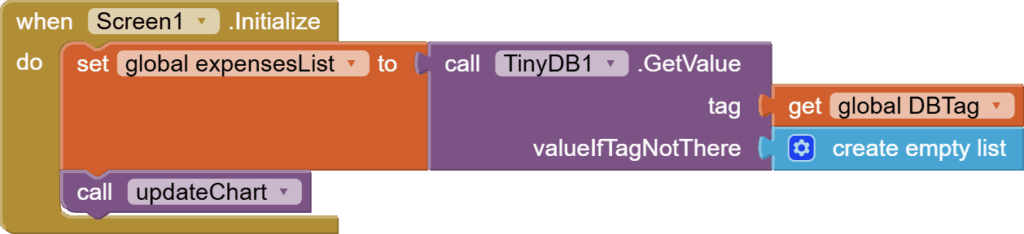
Next, what happens when the screen is initialized? We need to load our previously saved expenses list from the tinyDB against our DB tag into our global expenses list and construct the pie chart for it by calling updateChart procedure.
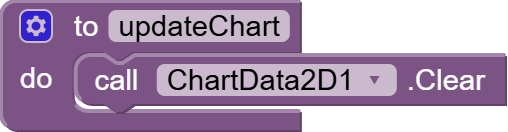
Lastly, let’s work on our updateChart procedure.
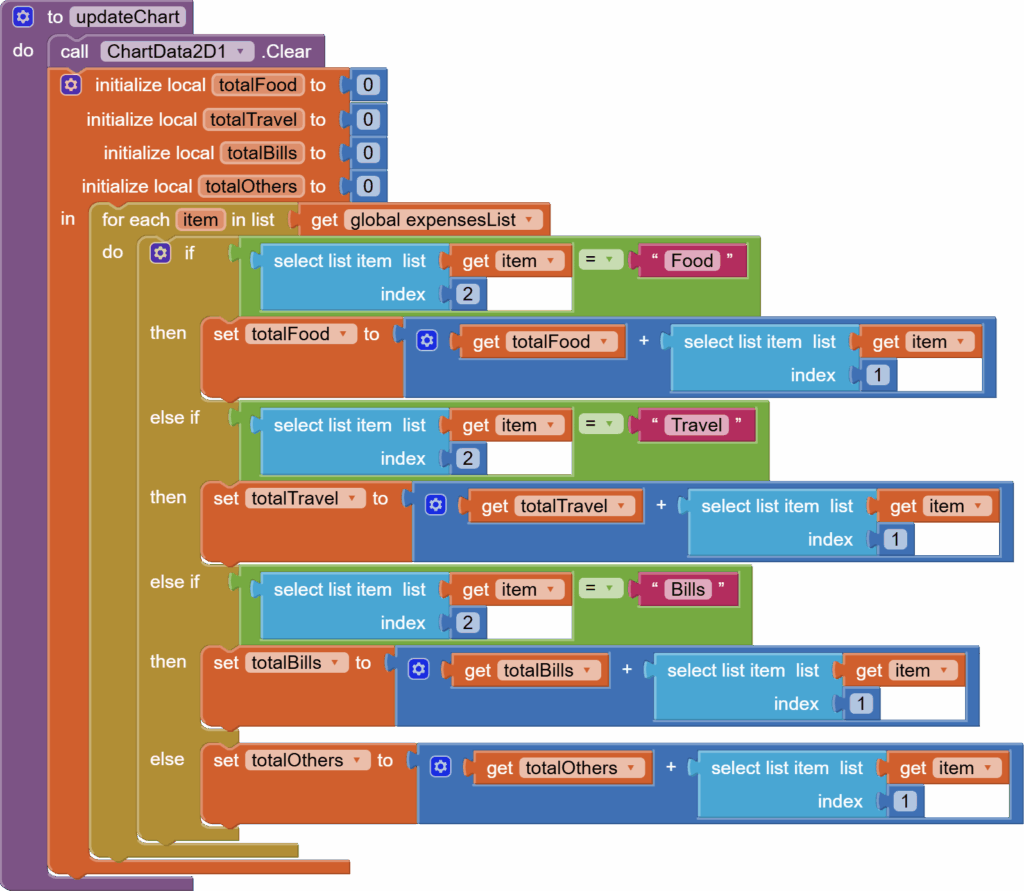
First, we are going to clear our previously drawn pie chart by calling the Clear procedure for our ChartData2D component.
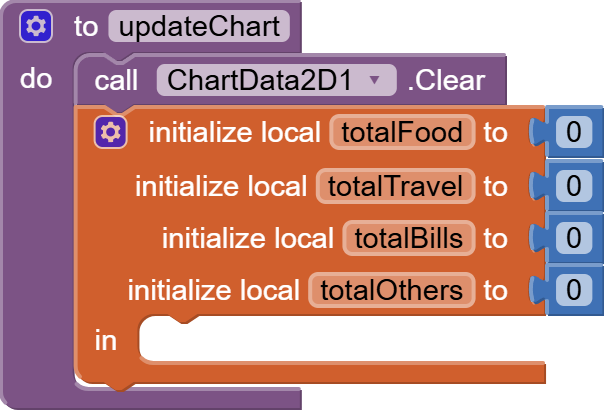
Next, we are going to initialize some local total variables for our expense categories to 0.
Now we’ll loop through our expenses list. Remember that each expense is itself a small list where the first item is the amount and the second item is the category. For every expense, we check the category, and based on whether it’s Food, Travel, Other, or Bills, we add the amount to the matching total variable. This way, by the end of the loop, each category variable holds the sum of all its expenses.
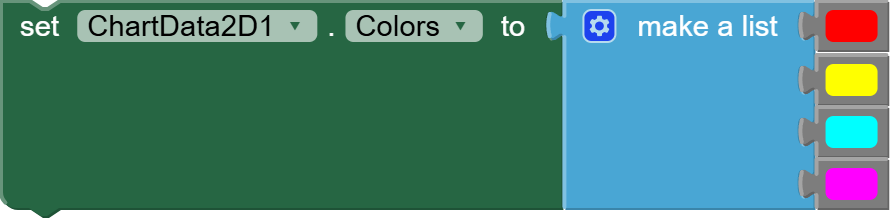
After the for loop ends, we need to specify colors for our pie chart:
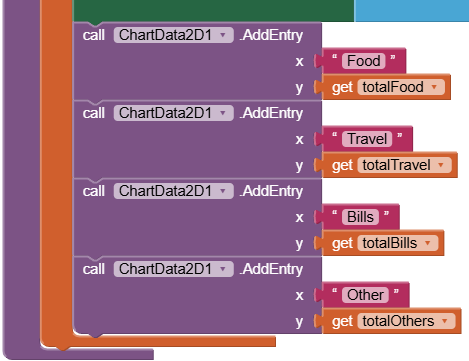
And at the very end, we are going to provide our total variables to chartData2D as entries.
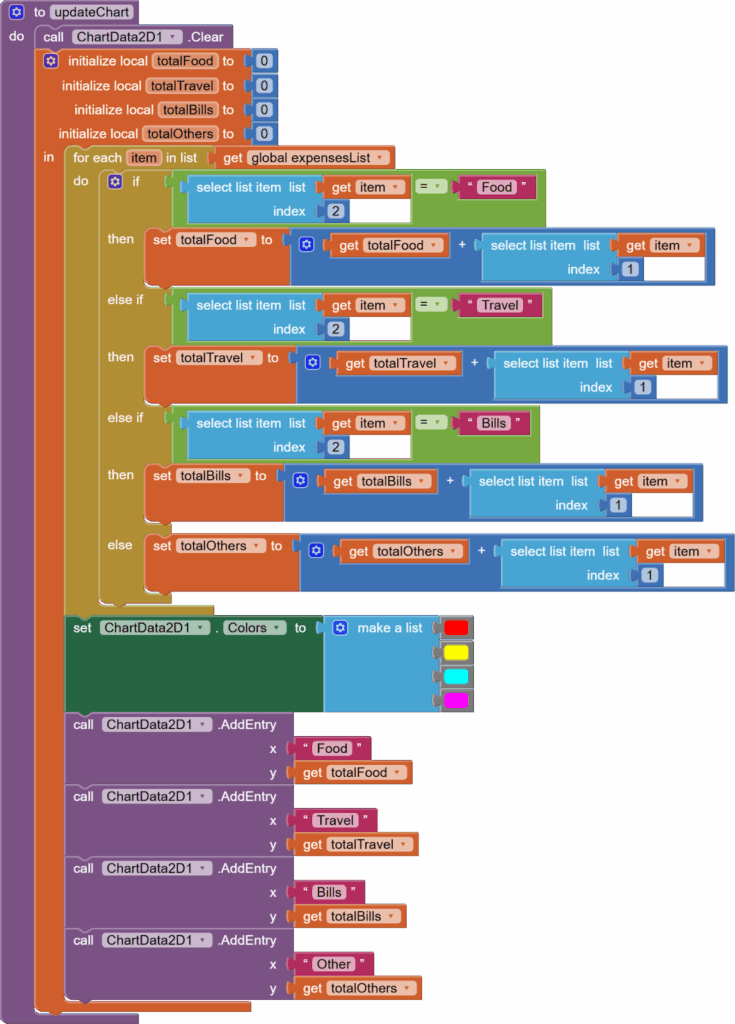
So the final updateChart procedure looks like this:
And this is done. I hope you liked this tutorial for making a pie chart in MIT App Inventor using no extensions. You can also have a look at the video tutorial for this project on my channel.
Please like my tutorials and share it with your friends and family. Also, subscribe to my channel and press the bell icon so you don’t miss any of the great projects I have planned for you.
https://www.youtube.com/c/obsidiansofteducation
Please like my Facebook page and Instagram page for more educational resources and tips.
Facebook: https://www.facebook.com/ObsidianSoft/
Instagram: https://www.instagram.com/obsidiansoftapps/
Pinterest: https://www.pinterest.com/obsidiansoft/
For links to free educational apps, have a look at the educational apps page