
Hello friends, and welcome to Obsidian Soft,
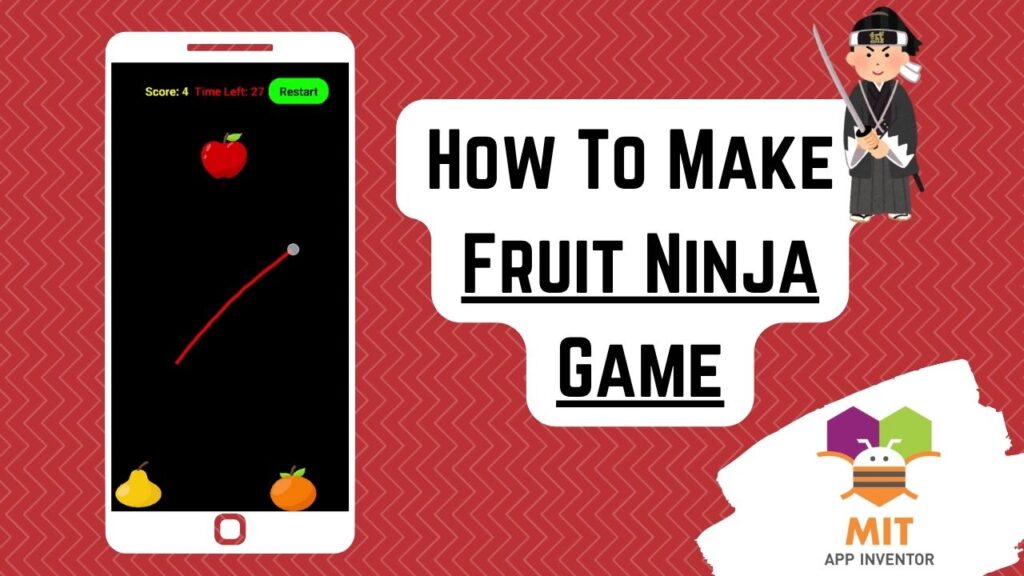
Today, I will teach you how to make the Fruit Ninja game in MIT App Inventor. I have tried to cover the best concepts of the game in this tutorial so that we end up with a fully functional, entertaining game.
So, let’s begin. Open up MIT App Inventor.
Start a new project and call it Fruit Ninja Game
Upload media: 3 fruit images and one slice sound effect. Resource links are given below:
Steel blade slice 3 from https://pixabay.com/sound-effects/search/slice
After uploading media, make the screen orientation portrait in screen1’s properties.
Add a horizontal arrangement with align horizontal and align vertical properties both centered. Make the background color black. Change background color to Make height 15% and width fill parent. Add a label to show the score. Rename to scoreLbl. Change the color to yellow. Make the font bold and font size 20. Select the score label and duplicate it by pressing Ctrl + C & Ctrl + V on the keyboard for Windows OR Command + C & Command + V on the keyboard for MacOS. Rename to timeLbl. Change the color to red. Also, add a button in the same layout. Rename to restartBtn. Make the font bold and font size 20. And change the color to green.
And change the text to Restart. Add a canvas from Drawing and animation. Make background color black, font size 40, height 80% and width fill parent. Set the Line width to 5 and the paint color to red. You can increase this line width to make the slice thicker and change the color to another color if you prefer something other than red for the slice.
Add an image sprite from the drawing and animation palette. Make height and width both 70 px. Choose one of the fruit images as the picture. And set the interval to 50. Turn off rotates checkbox. Select the image sprite and duplicate it by pressing Ctrl + C & Ctrl + V on the keyboard for Windows OR Command + C & Command + V on the keyboard for MacOS. Just change the picture to another fruit. You can add as many fruits as you want with different fruit pictures.
Now, add a clock from sensors. Rename to gameTimer. Uncheck the timer-enabled property. The timer interval should stay 1000 ms, which means 1 second.
Duplicate this gameTimer. Rename to clearSlashTimer. Just change the timer interval to 150. It should stay disabled.
Lastly, add a sound from media and choose your uploaded slice sound effect as the source. UX design is done, so let’s go to the blocks section.
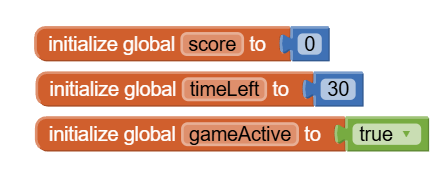
Go to the blocks section. Make global variables for score and time left. And a status variable indicating whether the game is active or not.
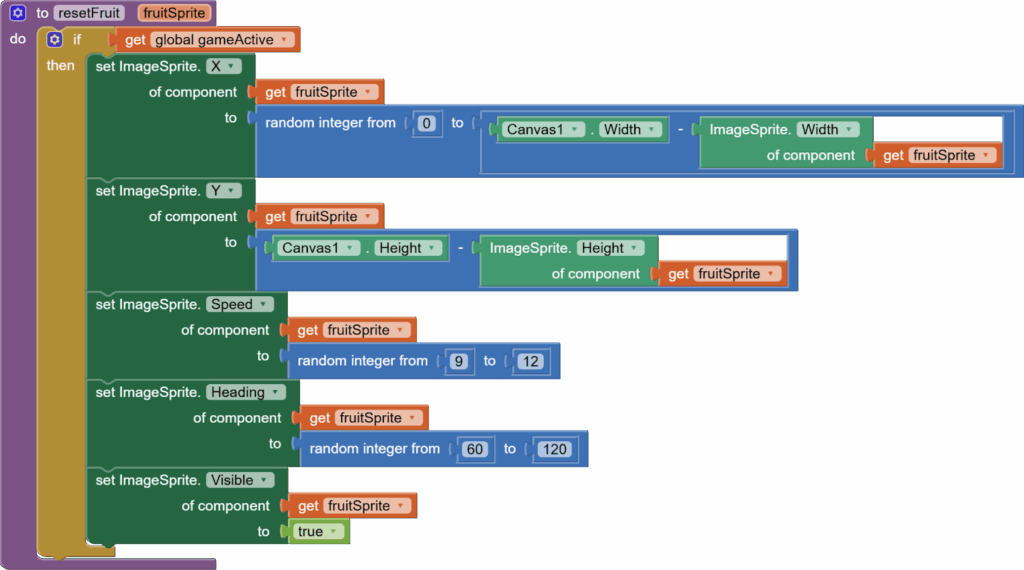
First, let’s make a procedure for resetting a fruit sprite’s properties. The procedure takes an input fruit. First we check that the game is active. Every time a fruit sprite is reset, it should be given a new random position on the canvas. It can be anywhere on the screen width-wise, but it should always start from the bottom of the canvas. So, X should be randomized between canvas width and imagesprite.width, and Y is a little over the canvas. height, so we are not touching the bottom edge. We don’t want that; otherwise, our edge-touched event will be triggered. We are using any component blocks, so this way we can have as many fruits in the game, and we don’t have to write code for each fruit separately. I have already covered any component blocks in my picture-matching game and snow globe tutorials. We give a random speed between 9-12, and we give a random heading/direction. The fruit can go from left top slant to right top slant….a heading between 60 degrees and 120 degrees, where a degree of 90 means straight up. And we make the sprite visible.
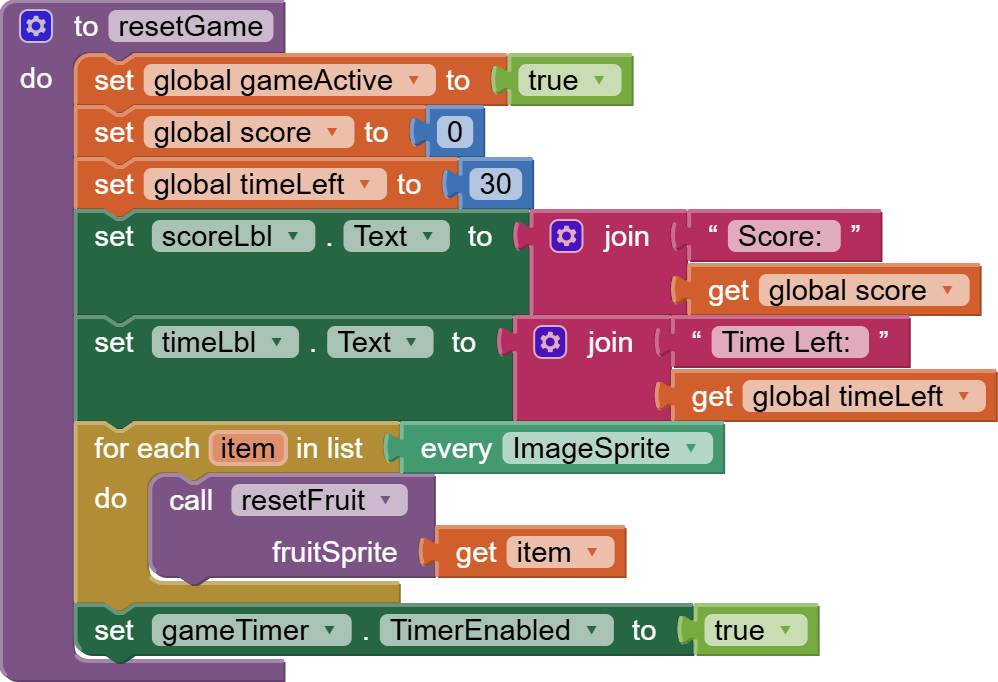
Then, we make a procedure for resetting the entire game. First, we make the game active. Set score and time left back to original values of 0 and 30, respectively. Update the labels for these variables accordingly. And then using any component -> any image sprite -> every image sprite block that automatically contains all the fruit image sprites in our project, we use a for each item loop from Control to reset each fruit. Lastly, we enable the game timer so that the game starts.
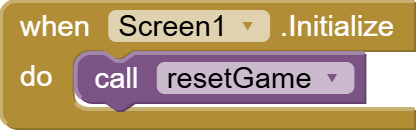
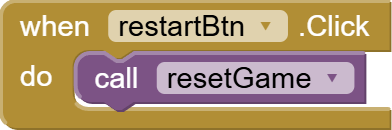
Next, we call this reset game procedure in the initialize event for the screen. And we also call it when resetbtn is clicked.
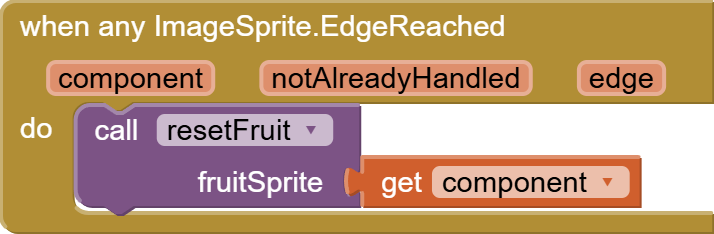
Now, we get the any image sprite edge reached event that will be automatically triggered when any image sprite, i.e., a fruit, touches the edge. This is the reason why we didn’t reset the fruit’s Y to the canvas. height, but a little over it, so this event isn’t triggered. We call the resetFruit procedure for the component i.e., fruit that has reached the edge.
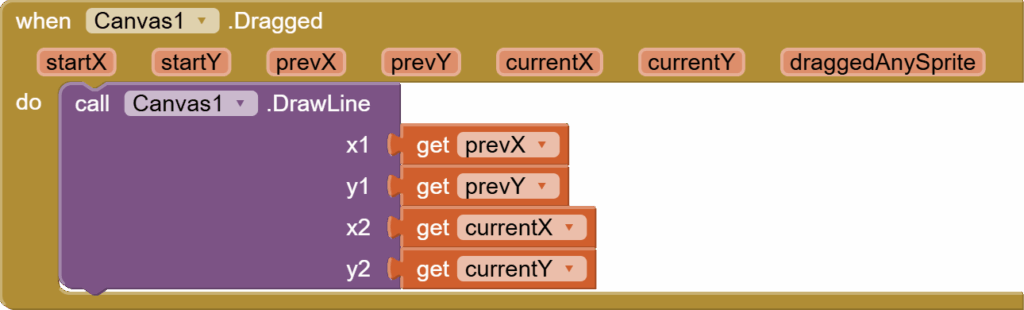
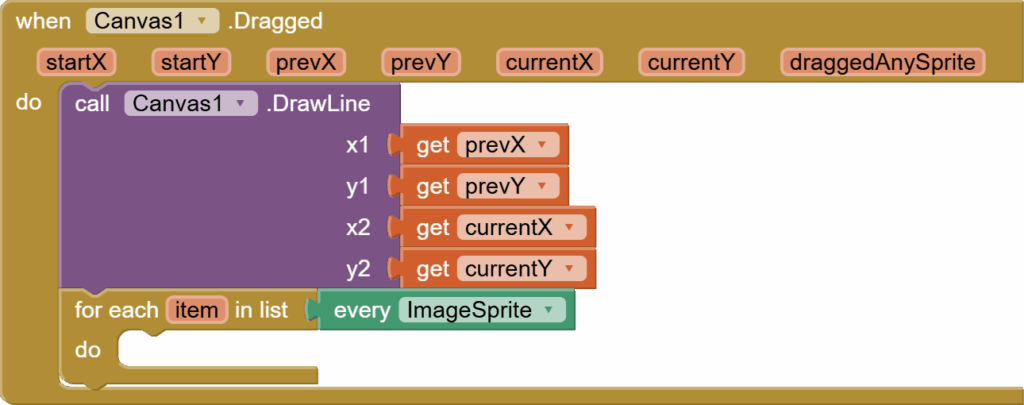
Next comes the main event of when we drag our finger on our screen. Get the canvas. dragged event. We have to do two main things. We have to draw a line wherever our finger drags, and we also have to check if our drag has come somewhere inside the fruit.
First, use canvas.drawLine to draw a line from the previous position (prevX, prevY) to the current position (currentX, currentY).
Then, check if the current position is inside any of the fruits. We are going to again use a for each item loop on every image sprite list.
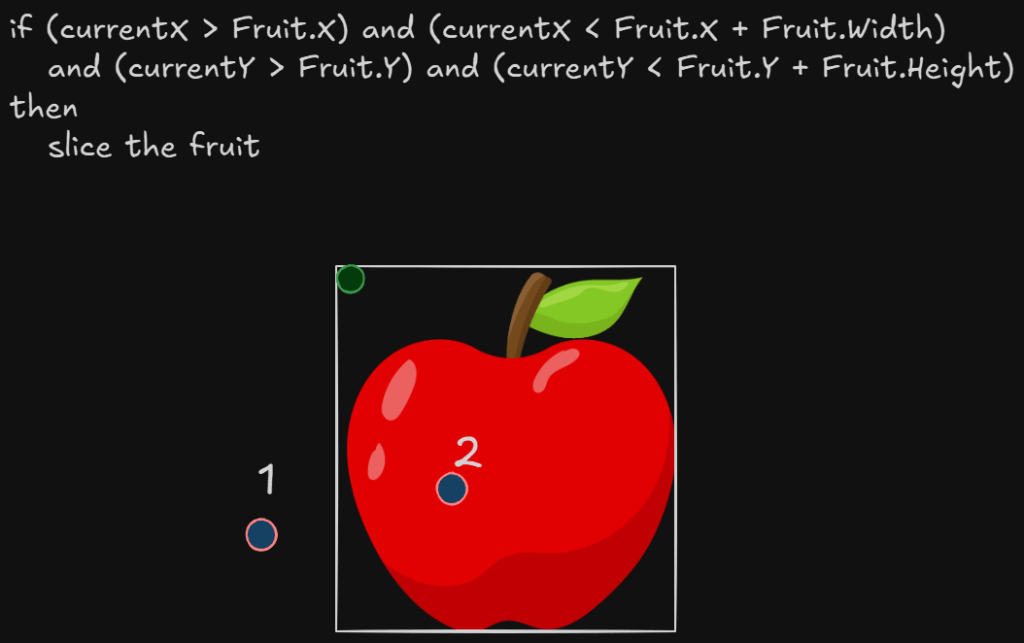
We are going to check if the currentX, currentY are both within the bounding box of our image sprite. For example, in the following picture, point 1 is outside but point 2 is inside, so in that case, if condition will be true and we will slice the fruit. If you don’t understand this logic, no worries, I have explained it in more detail at the end of this tutorial.
For actual fruit slicing, we will just reset the sliced fruit to a new position. Increase the score and reflect it on the screen using the score label. We will also break, as there is no need to check other fruits (not simulating double slicing in this tutorial). Outside the for loop, we also enable our clear slash timer.

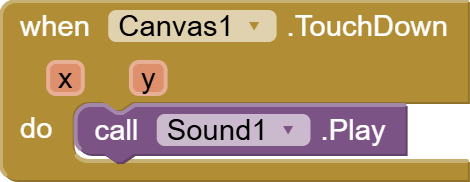
We play the slice sound in canvas. touchdown event.
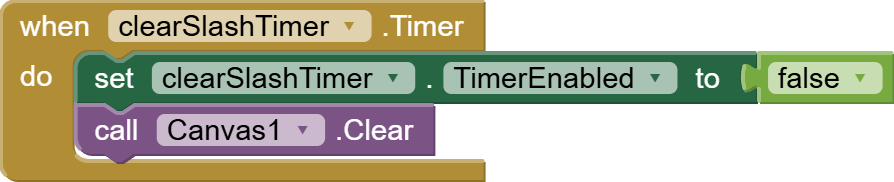
And in clearSlashTimer, which is triggered after 150 ms of being enabled, we will first disable it so that it is not triggered again and again and then we clear the canvas so that the slash disappears.
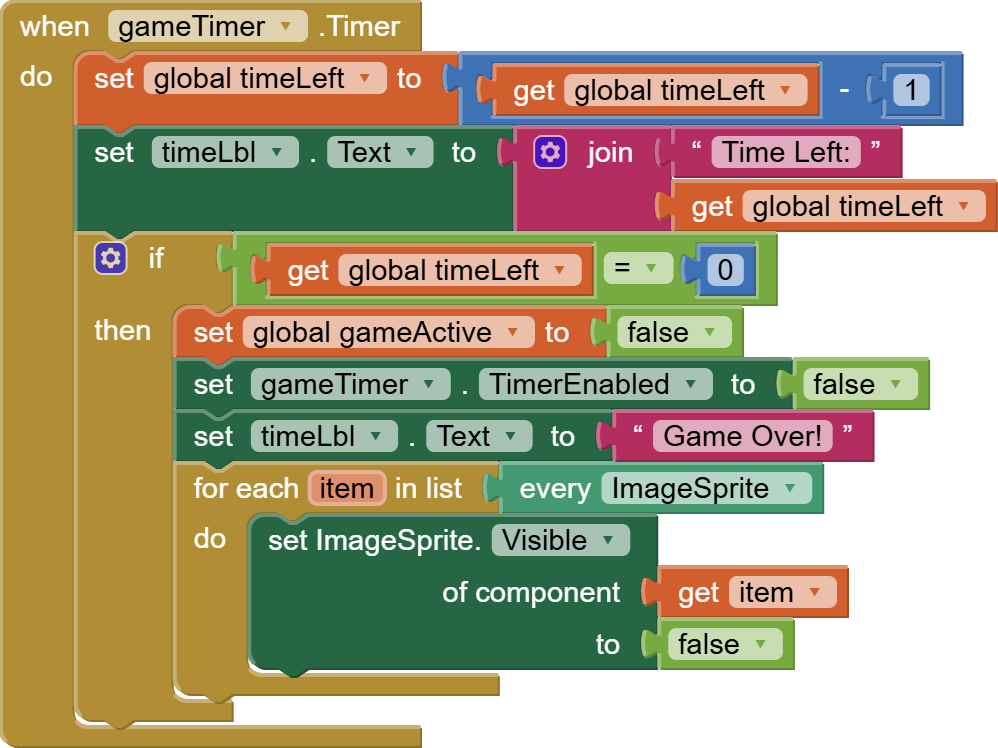
At the end, we have a game timer event that runs after 1000 ms, equal to 1 second. It decreases or decrements the time left variable and updates the time left label on the screen. It checks if the time left is equal to 0 for game game-over condition. In case it is, it disables all timers, makes all the image sprites invisible, and updates timeLbl with Game Over text.
And this is done. I hope you like this fun Fruit Ninja game made completely in MIT App Inventor, perfect for school and college projects or just to impress your friends.
Download AIA file for the Fruit Ninja Game in MIT App Inventor
You can also check out the video tutorial for this project on my channel.
Please like my tutorials and share it with your friends and family. Also, subscribe to my channel and press the bell icon so you don’t miss any of the great projects I have planned for you.
https://www.youtube.com/c/obsidiansofteducation
Please like my Facebook page and Instagram page for more educational resources and tips.
Facebook: https://www.facebook.com/ObsidianSoft/
Instagram: https://www.instagram.com/obsidiansoftapps/
Pinterest: https://www.pinterest.com/obsidiansoft/
For links to free educational apps, have a look at the educational apps page
More details for successful slicing:

Step-by-step logic
- currentX and currentY
- These are the coordinates of the player’s finger during the swipe.
- These are the coordinates of the player’s finger during the swipe.
- Fruit.X and Fruit.Y
- These are the top-left corner of the fruit sprite.
- These are the top-left corner of the fruit sprite.
- Fruit.X + Fruit.Width and Fruit.Y + Fruit.Height
- These give the bottom-right corner of the fruit sprite.
- These give the bottom-right corner of the fruit sprite.
- The whole condition is basically asking:
“Is the player’s finger inside the rectangle of this fruit?”
- (currentX > Fruit.X) → finger is to the right of the left edge.
- (currentX < Fruit.X + Fruit.Width) → finger is to the left of the right edge.
- (currentY > Fruit.Y) → finger is below the top edge.
- (currentY < Fruit.Y + Fruit.Height) → finger is above the bottom edge.
- (currentX > Fruit.X) → finger is to the right of the left edge.
- If all of these are true → the finger is inside the box.
- If the finger is inside → we slice the fruit
Even simpler explanation:
Every fruit is just a rectangle with a top-left corner, a width, and a height.
When we swipe, our finger gives us a point (X, Y).
If that point is inside the rectangle, we say the fruit is sliced.