
Hello friends and welcome to Obsidian Soft,
In this tutorial, I will tell you how to make a free privacy policy webpage for your mobile app without paying anything for domain hosting. I will focus on an app that you are planning to publish to the Google Play Store but you can make a privacy policy page similarly for other app stores.
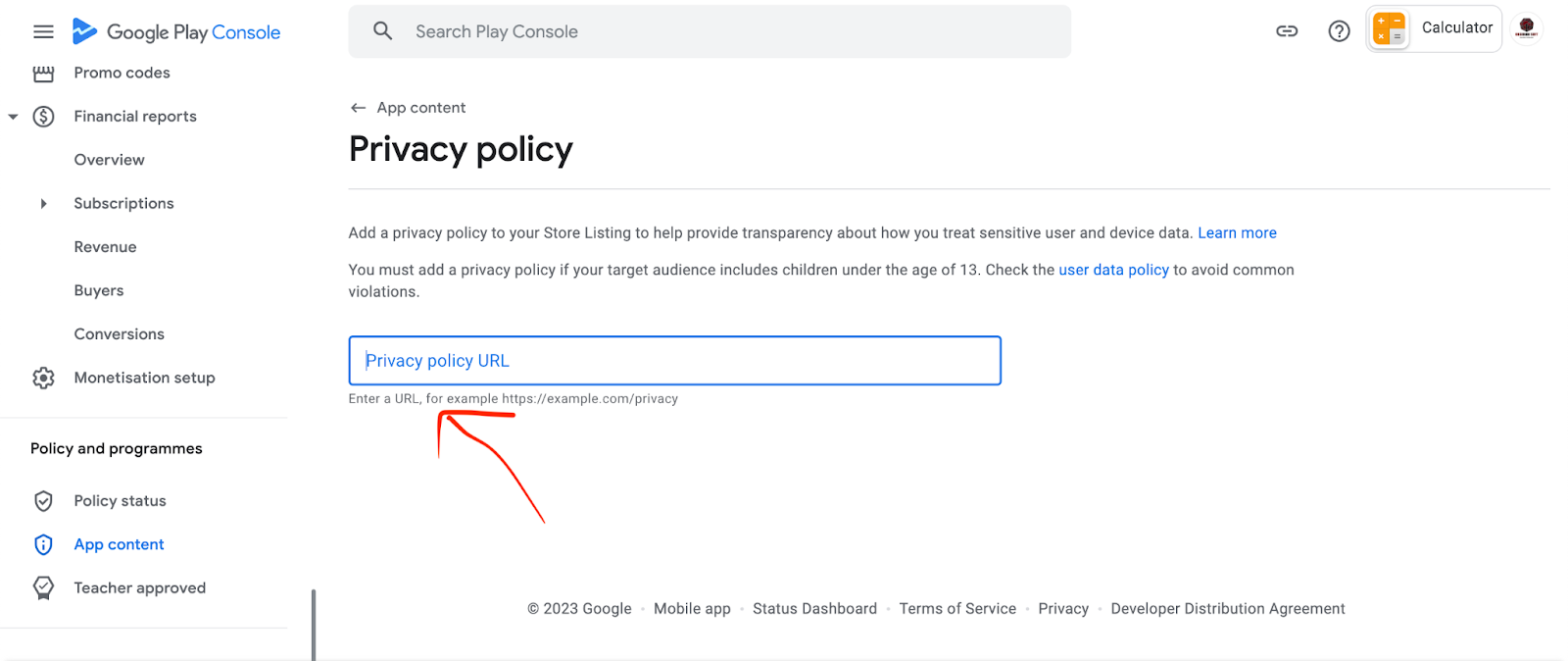
For the Google Play console, you need to enter a privacy policy webpage URL in the play console in the app content section.
And, you also need to put the privacy policy within your app. You can put your entire privacy policy in a separate screen in your app or you can use the approach that I use i.e. open up the webpage with your privacy policy by pressing a button in your app.
I will show you towards the end of this tutorial how to do this for the MIT App Inventor calculator app that I used as a demo previously in my publishing to Play Store tutorial.
Also, you can go through this page about Google Play requirements for the content of a privacy policy:
As you can see all apps require it and this is observed very, very strictly if your app collects personal information or targets children less than 13 years of age.
To summarize this guideline, keep in mind that your privacy policy should contain
- Developer information and a point of contact or a mechanism to submit inquiries for example your email.
- You need to disclose the types of personal and sensitive user data your app accesses, collects, uses, and shares; and any parties with which any personal or sensitive user data is shared.
- You also have to inform about ads.
Please read through the policy guidelines very carefully.
I will give a link to one of my privacy policies in the video description that has ads and in-app purchases so you can use it as a guideline
https://obsidiansofteducation.blogspot.com/p/phonics-fun-privacy-policy.html
So, let’s begin:
Open up this link:
You will have to log in using a Gmail account. If you don’t have a Gmail account, create one.
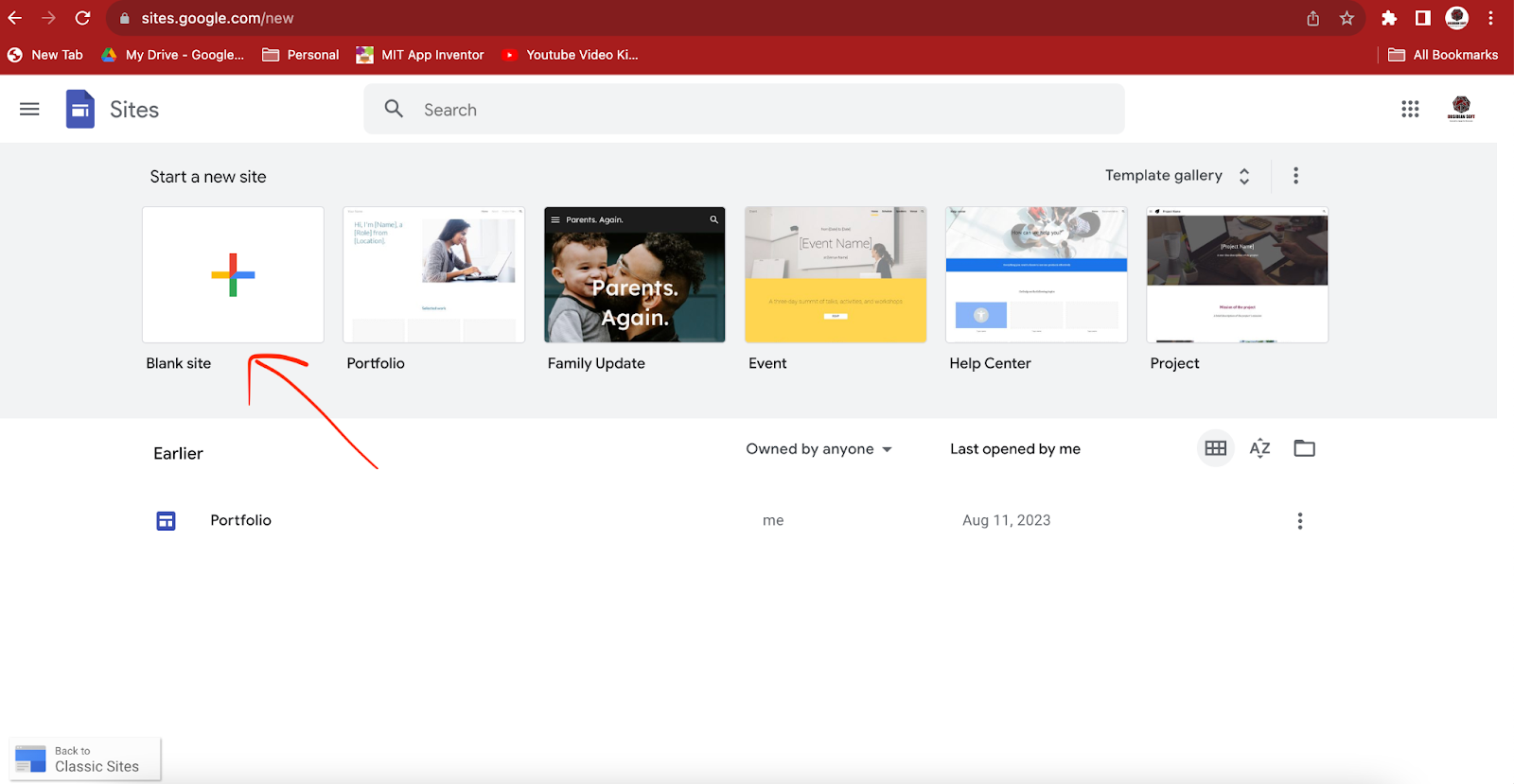
Click on the + button.
This is the home page of your new website. Yes, you are also learning in this tutorial how to make a free website as a bonus 🙂without paying any hosting fees. Basically, your site will be hosted on Google Drive and Google Drive provides ample free space for such hosting.
So, this is the website of your app where you can provide information about what your app does. In our case, let’s continue with our calculator example and change the page title to Calculator.
Now, click on Pages on the right side and click on + below.
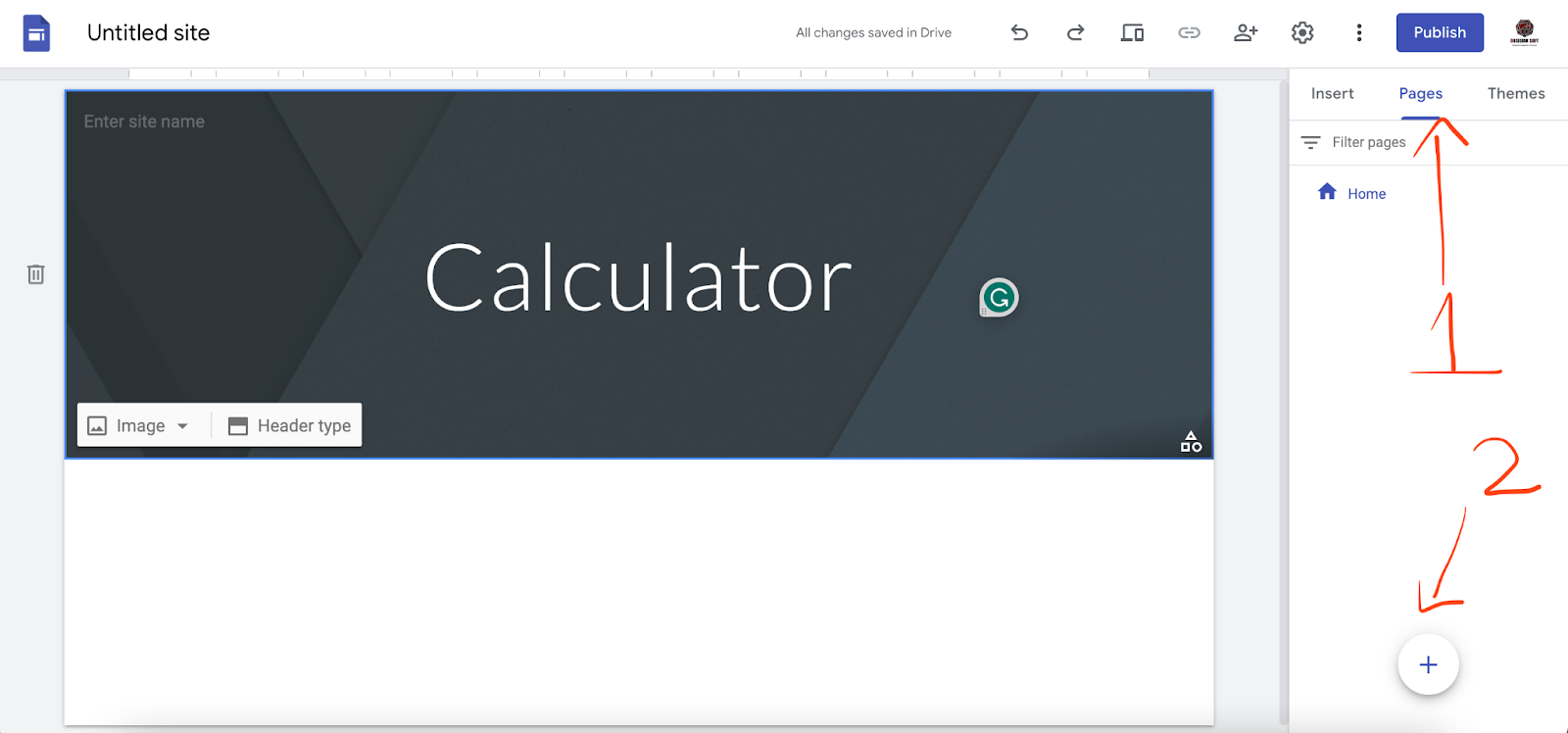
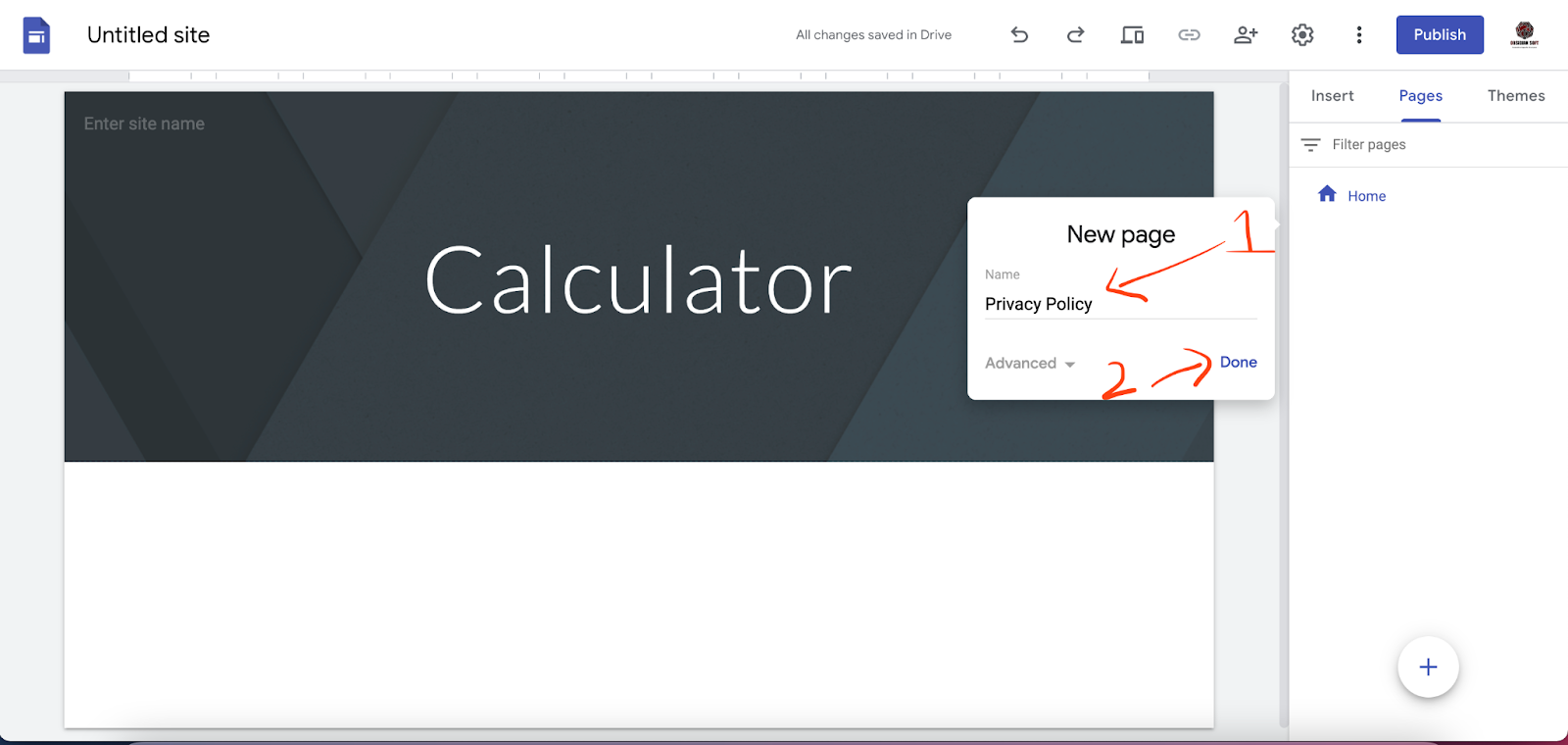
A dialog for a new page will open up. Write Privacy Policy in the dialog and press done.
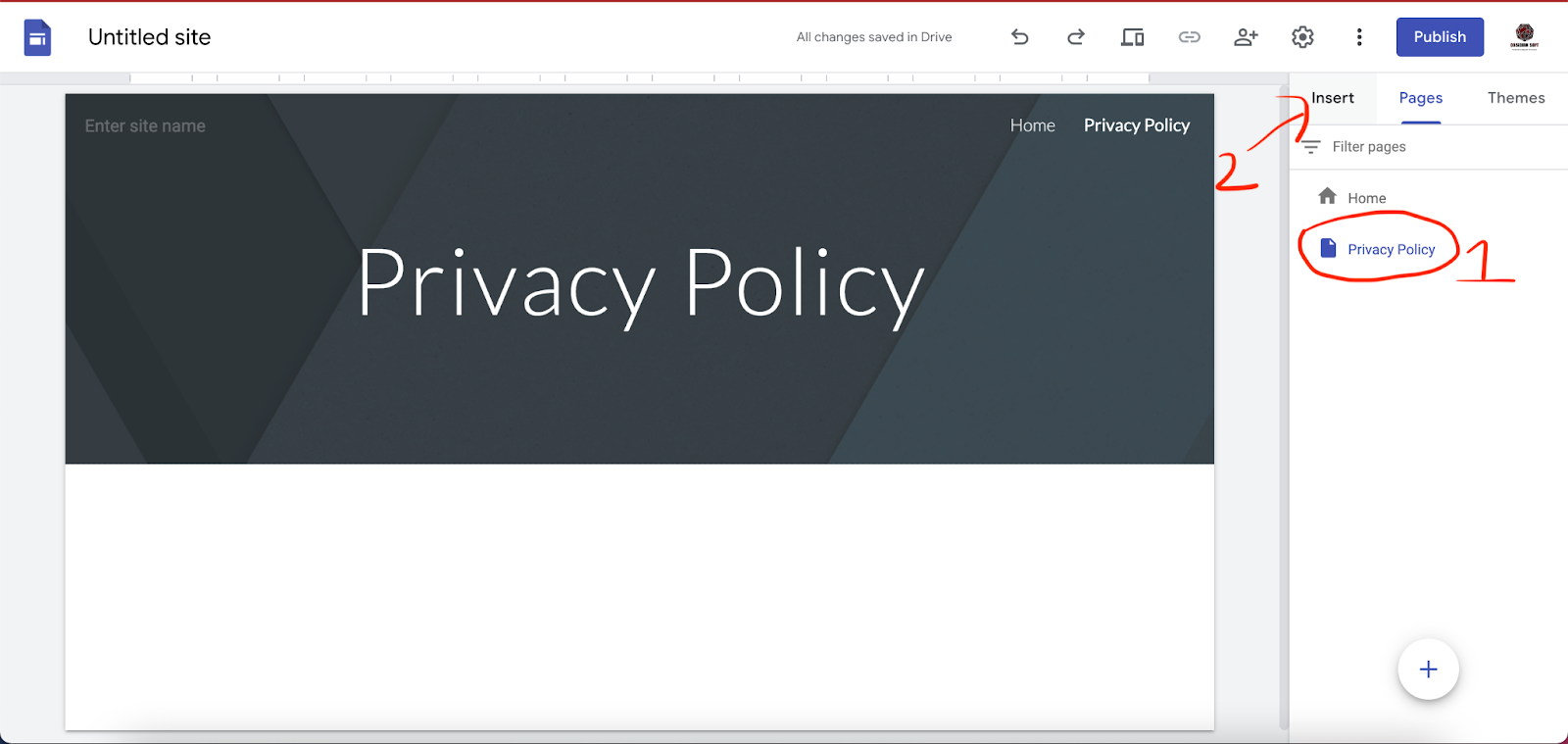
A new page will be created.
You can switch between the pages by choosing them from the right.
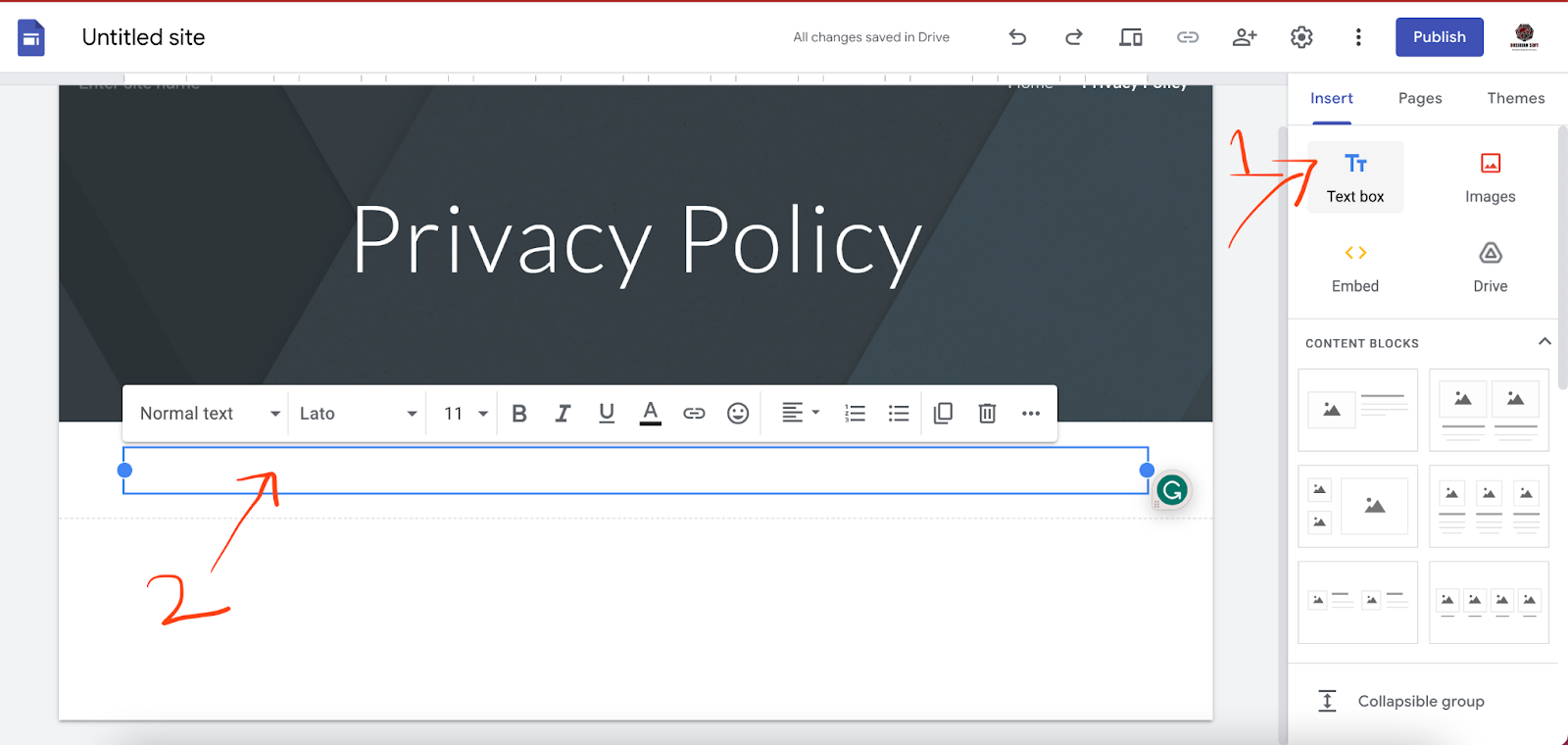
Now, while you have the privacy policy page selected, click on Insert.
Click on the Text box option. A text block will be added to the page. Just write your privacy policy there. I will copy-paste the privacy policy there that I have already constructed. This is a very, very basic privacy policy of an app that doesn’t collect information or use the internet, etc.
Once you are satisfied with your privacy policy, click on the blue publish button.
You will be shown a dialog where you have to give a site name.
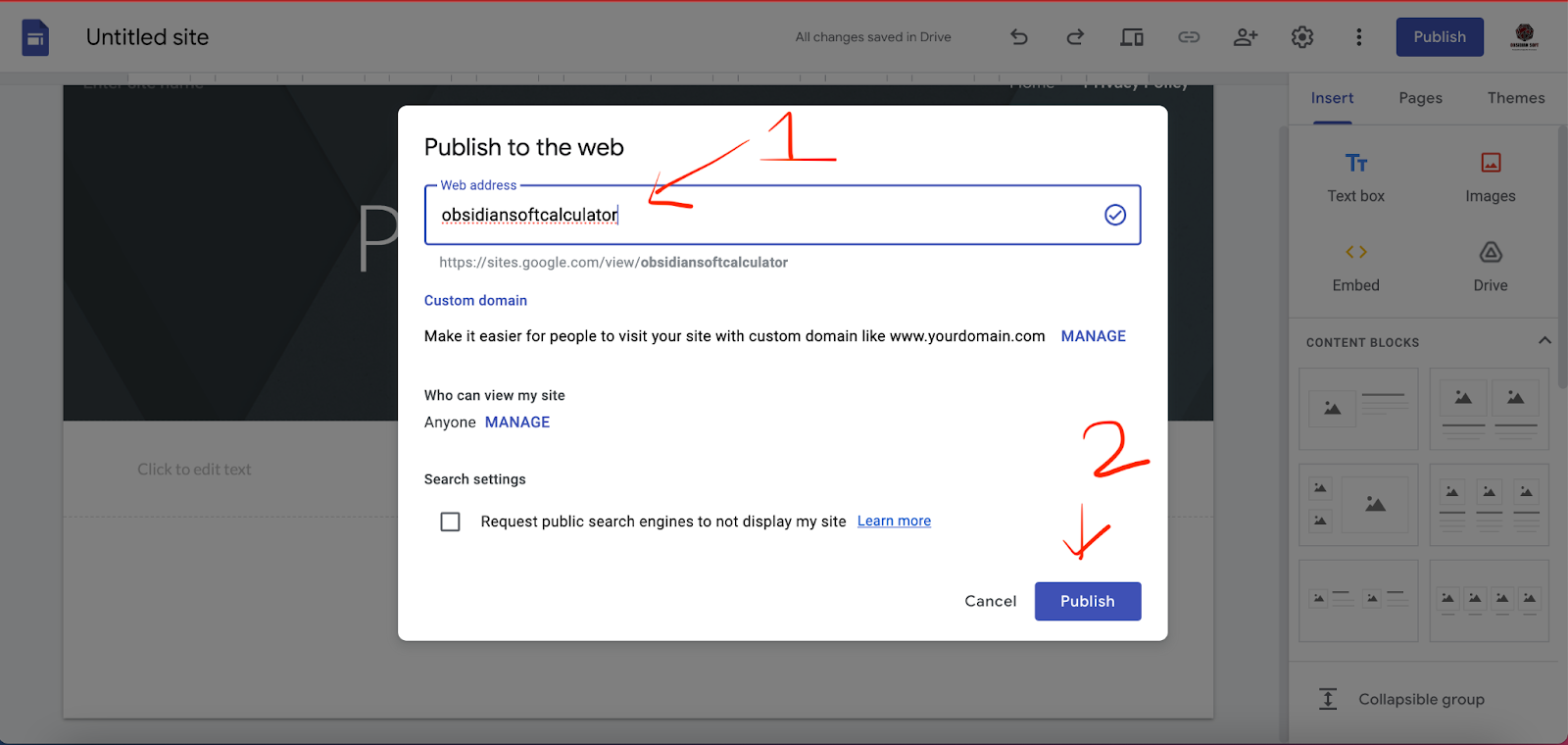
Give a unique site name and press on publish. Your new website’s address is http://sites.google.com/view/
Lastly, click on the arrow next to the publish button and choose “View published site”
Click on the privacy policy on your site. Copy the link from your browser. Now, paste this link into the app content section of your app in the Google Play console.
This is the privacy policy that I created in this tutorial:
https://sites.google.com/view/obsidiansoftcalculator/privacy-policy
The last thing is to add the privacy policy link to your mobile app. I will tell you how to quickly do it in MIT App Inventor.
Open up your app in MIT App Inventor. Add a button in the settings or main screen of your app that either says privacy policy or has a lock icon on it.
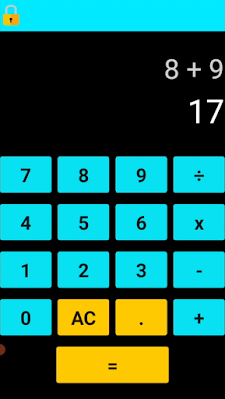
Now, add another screen and add a Webviewer from the User Interface in the designer view. Go back to the blocks section. Choose screen1 and from Control, get the open another screen block and choose screen2.

Now, go to the blocks section of screen 2 and get its initialize event. Use webviewer’s GotoURL procedure and paste the link of your app’s privacy policy in a text block.

This is done and you have completed all privacy policy requirements of the Google Play Store.
If you like my tutorials, consider supporting me:

You can also watch the full tutorial video here:
Please like my videos and share them with your friends and family. Also, subscribe to my channel and press the bell icon so you don’t miss any of the great projects I have planned for you.
https://www.youtube.com/c/obsidiansofteducation
Please like my social media pages for more educational resources and tips.
Facebook: https://www.facebook.com/ObsidianSoft/
Instagram: https://www.instagram.com/obsidiansoftapps/
Pinterest:
For links to free educational apps, have a look at the educational apps page