
Hello friends, and welcome to Obsidian Soft.
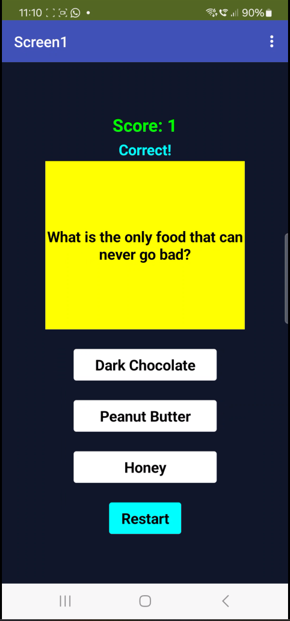
Today, we will make a dynamic quiz app in MIT App Inventor. Most quiz apps are static. If you want to change questions, you have to edit the app again.
But in this tutorial, I will teach you how to build a quiz app where all questions come from Google Sheets — and you can update them anytime without touching the app.
So, let’s begin.
First of all, open up Google Sheet.
https://docs.google.com/spreadsheets/u/0
Choose a blank sheet. Rename it to Quiz Questions.
Create a simple sheet with 5 columns
Question, Correct Answer, Choice1, Choice2, Choice3, and fill it up similar to the screenshot below:
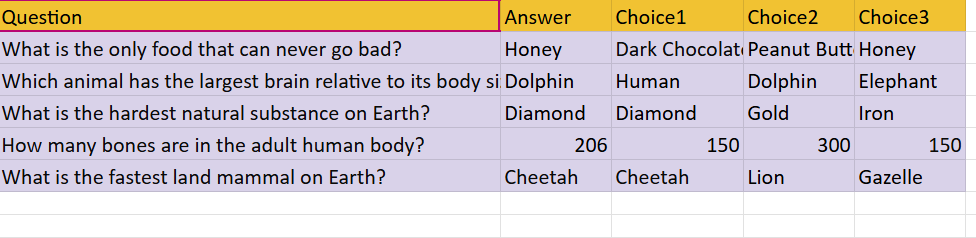
Remember that you can always add more questions to it later, and you will not have to update your MIT App Inventor code at all. Also, if you want a quiz app that loads questions from an online trivia API, let me know in the comments.
Coming back to the tutorial, look at the top of your Google Sheet. You will see a share button. Click it, and a dialog will appear. Choose “Anyone with the link” in General Access, and then click the Copy link button.
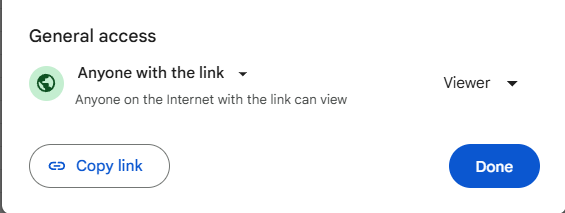
Paste the copied link into a text file. It will look something like this:
https://docs.google.com/spreadsheets/d/1tLlr0ps7-gxNV1-NCTMS4fYvynvUPu8Cxkz8/edit?usp=sharing
Replace edit?usp=sharing by export?format=csv
Make sure that it is exactly this: export?format=csv
Try this link. You should get a CSV like this:
Question,Answer,Choice1,Choice2,Choice3
What is the only food that can never go bad?,Honey,Dark Chocolate,Peanut Butter,Honey
Which animal has the largest brain relative to its body size?,Dolphin,Human,Dolphin,Elephant
What is the hardest natural substance on Earth?,Diamond,Diamond,Gold,Iron
How many bones are in the adult human body?,206,150,300,206
What is the fastest land mammal on Earth?,Cheetah,Cheetah,Lion,Gazelle
CSV means comma-separated values. We will decode this in MIT App Inventor, so keep the link safe for later use.
Now, download some sound effects for correct and wrong sound.
I like these from Pixabay, but you can choose something else, too.
Sound Effects:
- https://pixabay.com/sound-effects/search/wrong/
- https://pixabay.com/sound-effects/search/correct/
Now open up MIT App Inventor. Start a new project. Let’s call it DynamicQuizApp.
Keep the toolkit default.
Upload the two sound effects to the media.
In screen1’s properties, make align horizontal and align vertical both centered. Make the background color a custom dark blue color, for example. 0F172A and screen orientation should be portrait.
Add a label from the User Interface palette. Rename to scoreLbl. Make the font bold, font size: 22, text color: green, and then remove all text from it. Select and duplicate it. Rename to messageLbl. Change font size to 18 and change text color to cyan.
Add a vertical arrangement from the layout palette below the messageLbl with properties: align horizontal and align vertical both centered, background color: yellow, height: 30%, and width: 70%. Rename the arrangement to Card.
Put a label inside this Card arrangement and rename it to questionLbl. Make font bold, font size: 18, and text alignment: center.
Below the Card arrangement, put a button. Rename to choiceBtn1. Make the width 50%. In its properties, set the background color to white. Make font: bold, font size: 18, and shape: rounded. Duplicate twice to get choiceBtn2 and choiceBtn3. Duplicate it one more time, but rename this one to restartBtn. Make the background color cyan. Change the width to automatic and change the text to Restart.
Add some empty labels between the buttons for spacing.
Add a sound component from the Media palette. Rename to correctSound and choose the uploaded correct sound effect as the source. Duplicate and rename to wrongSound and change its source to the wrong sound effect.
Last but not least, add a web component from the connectivity palette. In its properties, set the URL to the one that you got from the Google Sheet and edited in a text file.
Our UX design is done, so let’s go to the block section.
First, we will make some global variables. We need a score and a current questionNumber both initialized to 0.


We need a global list to contain our quiz questions, answers, and answer choices.

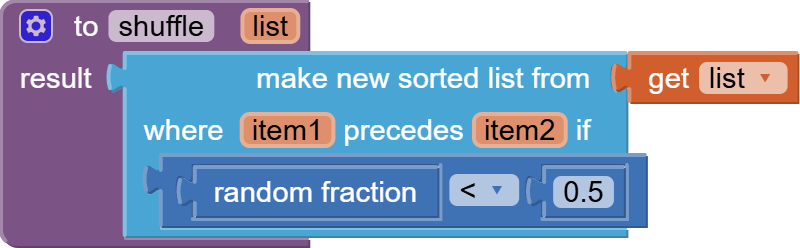
Let’s quickly make a shuffle procedure for shuffling our list. I have taught exactly the same thing in my flash cards app too. You can use it to shuffle any list.
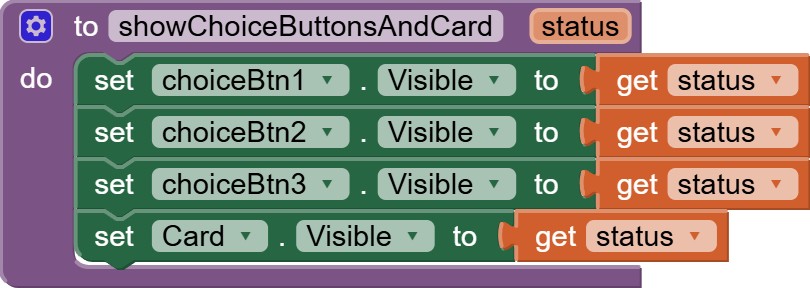
I need a helper procedure for hiding and showing my choice buttons and card depending on whether I pass true or false in status:
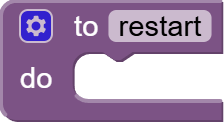
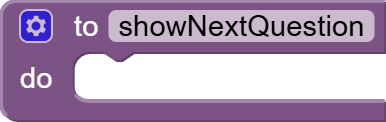
Make an empty procedure for clearing up the screen for restarting and call it restart and also make an empty procedure for showing the next Question. We will work on them later.
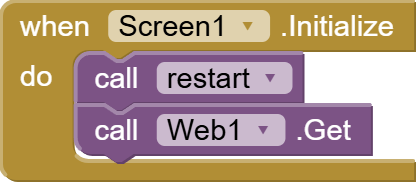
Next, get the screen1 initialize event and call restart in it, and also Web1.Get. This will use the URL that we set up for the Web component in the designer view and try to get results from the Google Sheet.
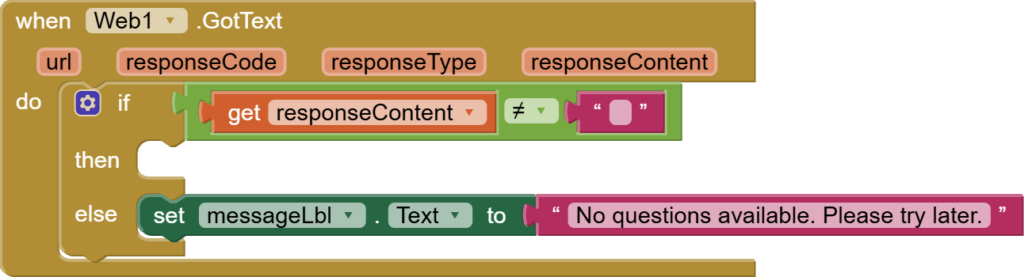
Next, using an if/else block from control, check that the response content is not empty i.e., some data was returned from the sheet. Otherwise, we use the messageLbl to show an appropriate message to the user.
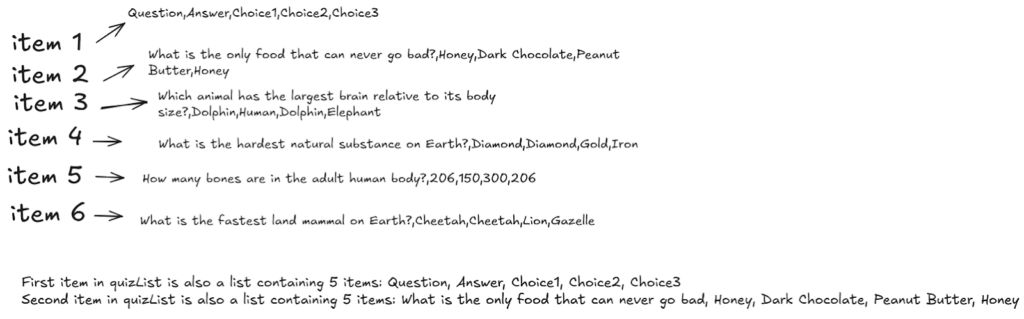
In if condition, once we know that the responseContent is not empty, we use the “list from csv table” block from the Lists section to convert our comma-separated values (csv) responseContent into a list. This conversion will return a list of lists. Why a list of lists? We will get a list where each item is also a list containing 5 items: question, answer, choice1, choice2, and choice3.
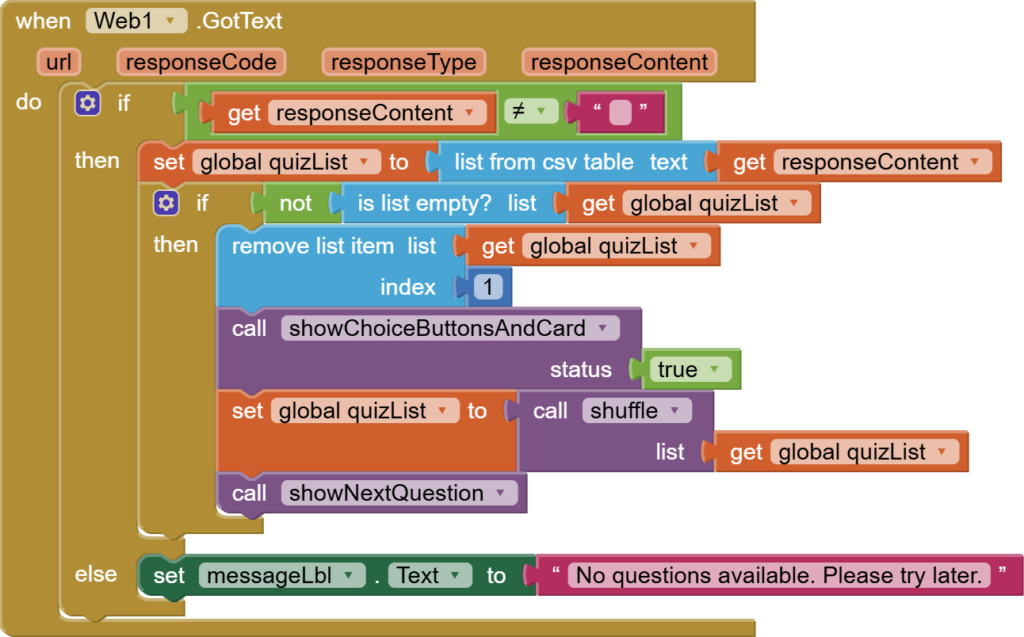
Now, we don’t want the first item as it contains column headers, so we will remove it. Then, we make sure that our choice buttons and card are showing by calling our custom procedure showChoiceButtonsAndCard with a true value. We also use our shuffle procedure to shuffle the quizList, and then we call the showNextQuestion procedure.
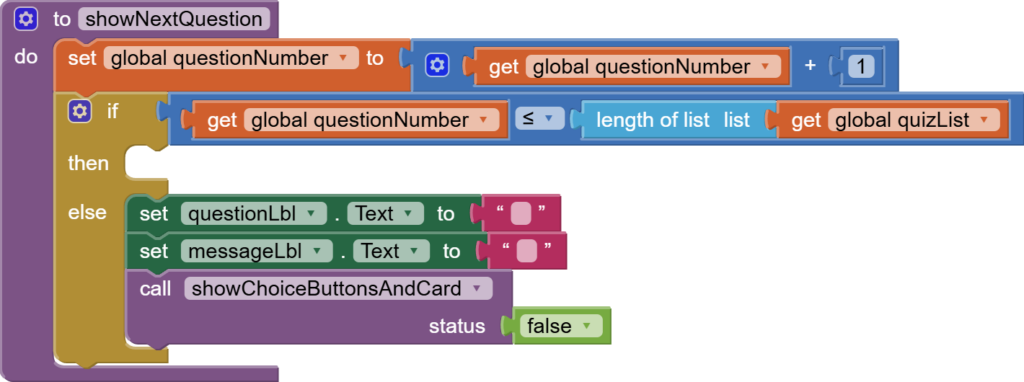
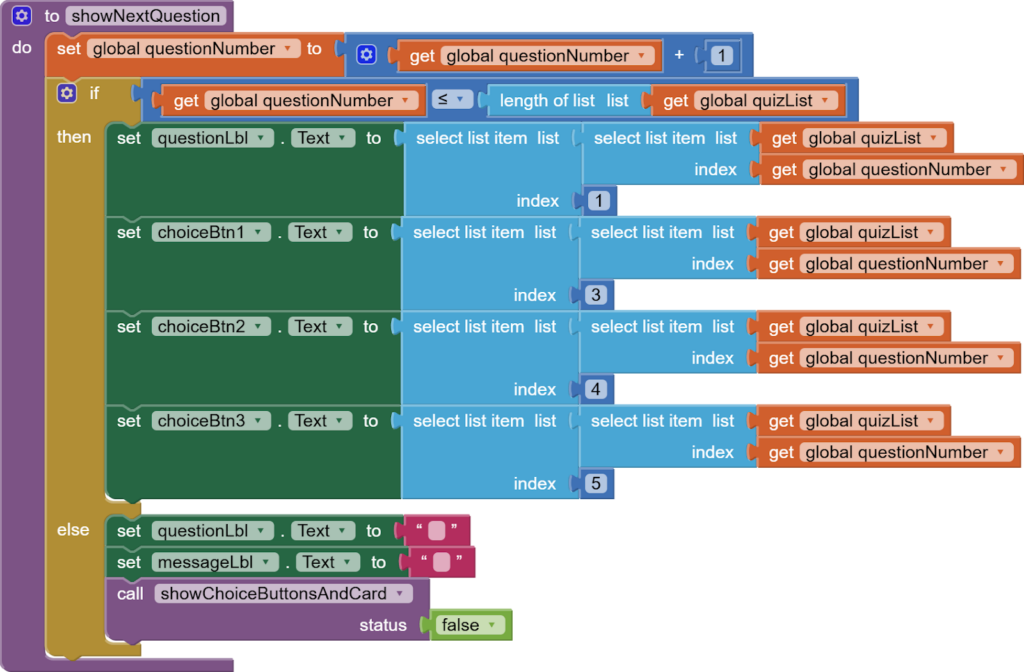
Next, we will work on the showNextQuestion procedure that we had left empty earlier. First, we add a 1 to our questionNumber. And then we check that we still have questions left in our quiz. How can we know that? We can check that questionNumber is still less than or equal to the length of the quizList (number of questions in our quiz). If not, we go in the else condition where we will clean up questionLbl and messageLbl and hide the card and choice buttons so that only score and restart buttons are visible.
So, what happens in the if condition of the showNextQuestion procedure? We have to set the text of questionLbl and our choice buttons, so do it carefully. The quizList is a list of lists, as explained earlier. We need to get a particular list from this list of lists; the one at the index questionNumber, as that is the question we are showing at the moment. For example, when the quiz is started, questionNumber becomes 1 from 0, so we get the first question’s data, i.e., the list from quizList. Now, the 1st item in this list is the question’s text, the 2nd item is the answer, but we don’t need it at the moment, the 3rd item is choice1, the 4th item is choice2, and the 5th item is choice3. So, update questionLbl and appropriate choice buttons.

Hence, our final showNextQuestion procedure looks like this:
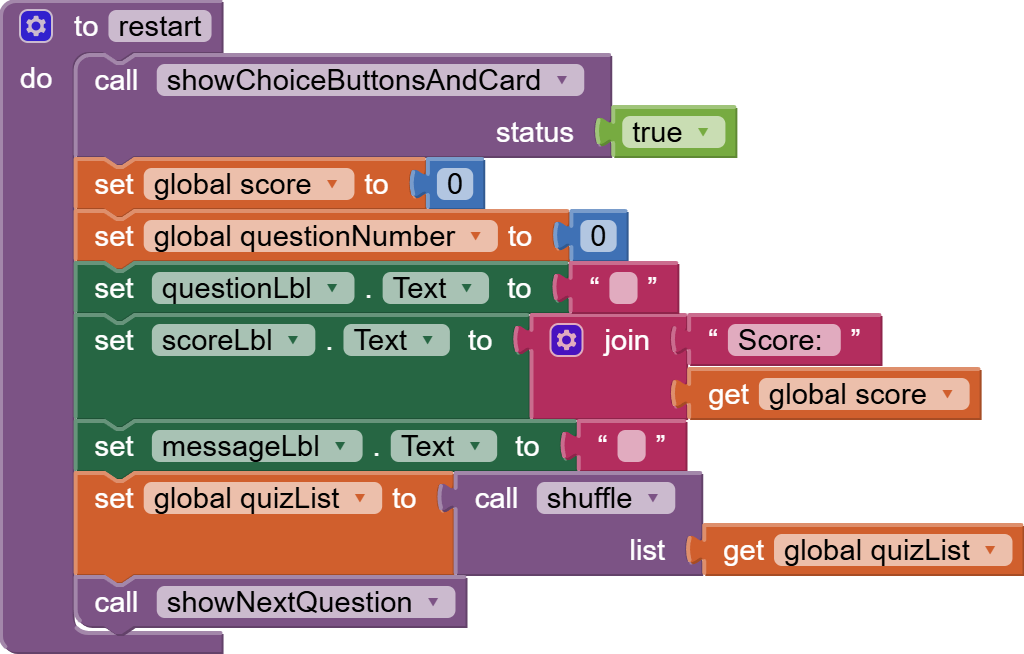
Then, let’s work on the custom restart procedure, which is simply cleaning up code. We enable the card and choice buttons. Reset score and questionNumber back to 0. Reset the labels on the screen. Shuffle the quizList and restart the quiz by calling the showNextQuestion procedure.
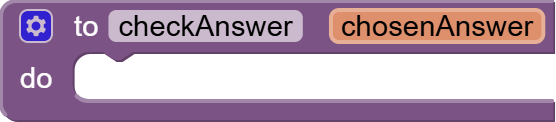
Now, make a procedure for checkAnswer which takes in an input that you can rename to chosenAnswer.
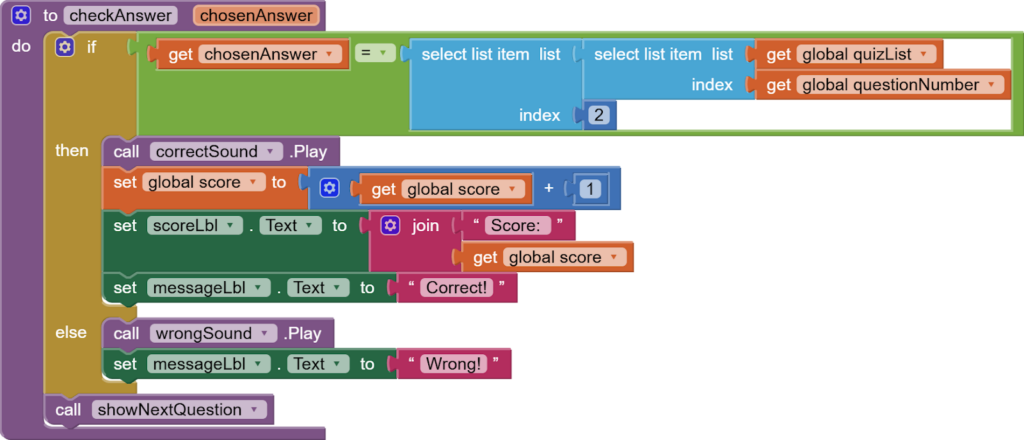
Inside it, choose an if/else block from control to check that the chosenAnswer is equal to 2nd item in your list at index=questionNumber in your master quizList. If yes, play the correct sound, increase the score by 1, update scoreLbl, and set messageLbl to “Correct!”. Otherwise, play the wrong sound and set messageLbl to “Wrong!” After the if/else block ends, call the showNextQuestion procedure to show the next question.
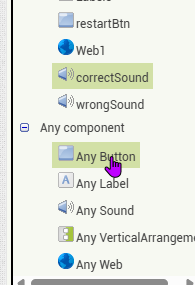
Now, from any component section, get any button click event that is inside the Any Button blocks.
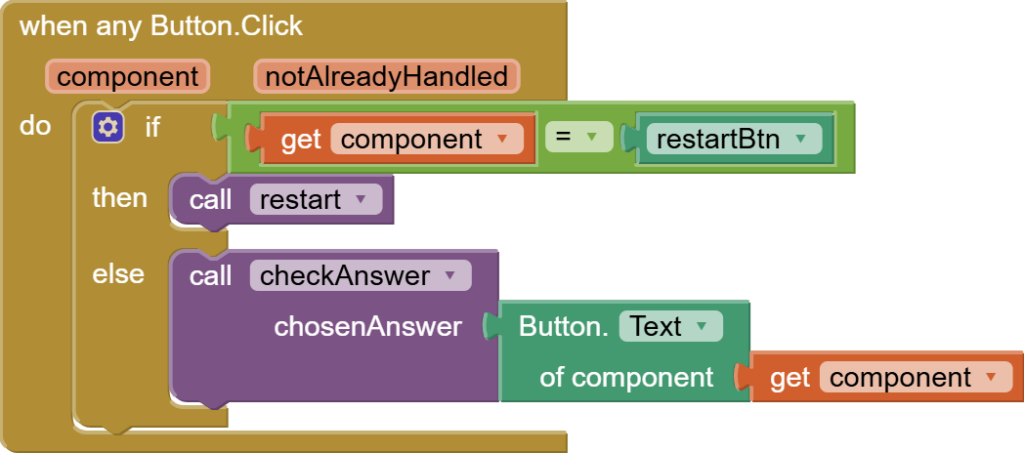
Inside this click event, use the if/else block from control to check if the button is resetBtn or not. If true, then call the restart procedure; else, call the custom procedure checkAnswer, but pass it the text on the clicked button.
Our app is done. You can try it now. I hope you liked this simple and beginner-friendly dynamic quiz app along with sound effects.
You can also have a look at the video tutorial here:
Please like my videos and share it with your friends and family. Also, subscribe to my channel and press the bell icon so you don’t miss any of the great projects I have planned for you.
https://www.youtube.com/c/obsidiansofteducation
Please like my Facebook page and Instagram page for more educational resources and tips.
Facebook: https://www.facebook.com/ObsidianSoft/
Instagram: https://www.instagram.com/obsidiansoftapps/
Pinterest: https://www.pinterest.com/obsidiansoft/
For links to free educational apps, have a look at the educational apps page